How to sign a PDF on Windows without uploading it
No printing, no scanning, no uploading your contract to a website. Here is how to put your signature on a PDF in under a minute, entirely on your own computer.
Step by step
- Open the PDF in Direct PDF Editor.
- Click Sign in the toolbar (or press S).
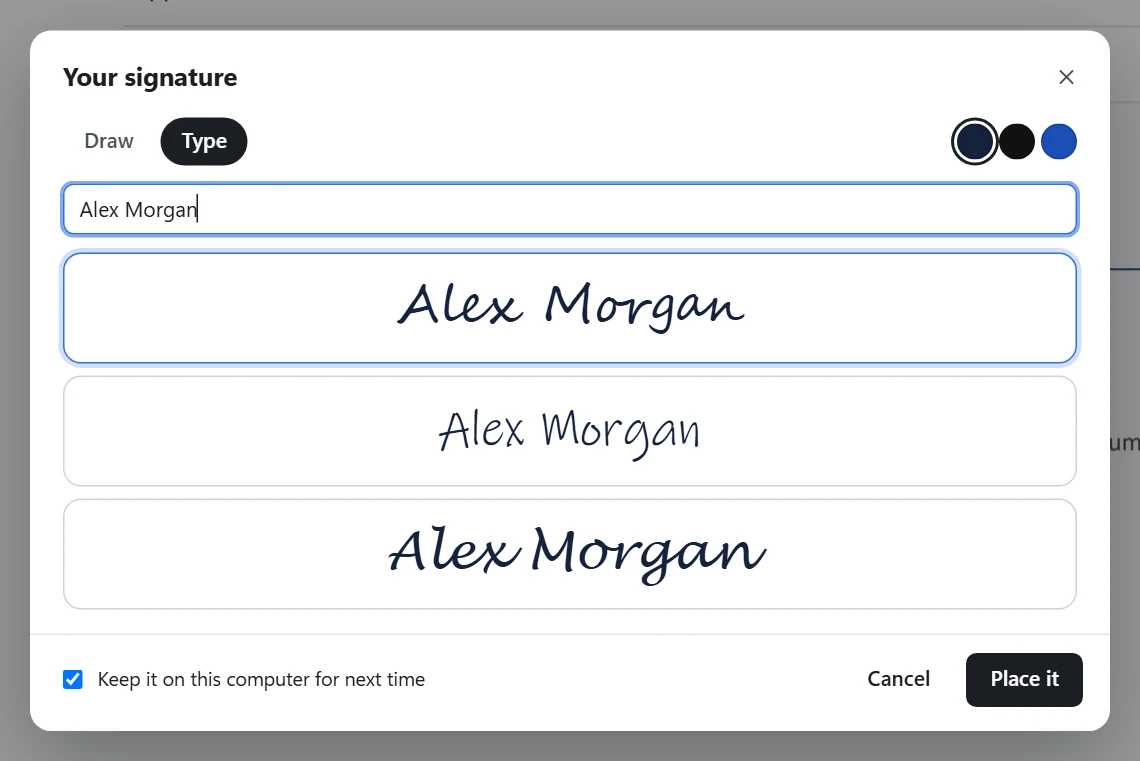
- Draw or type your signature.
- Draw: sign with the mouse, a touchpad, a pen or your finger.
- Type: write your name and pick one of the handwriting styles.
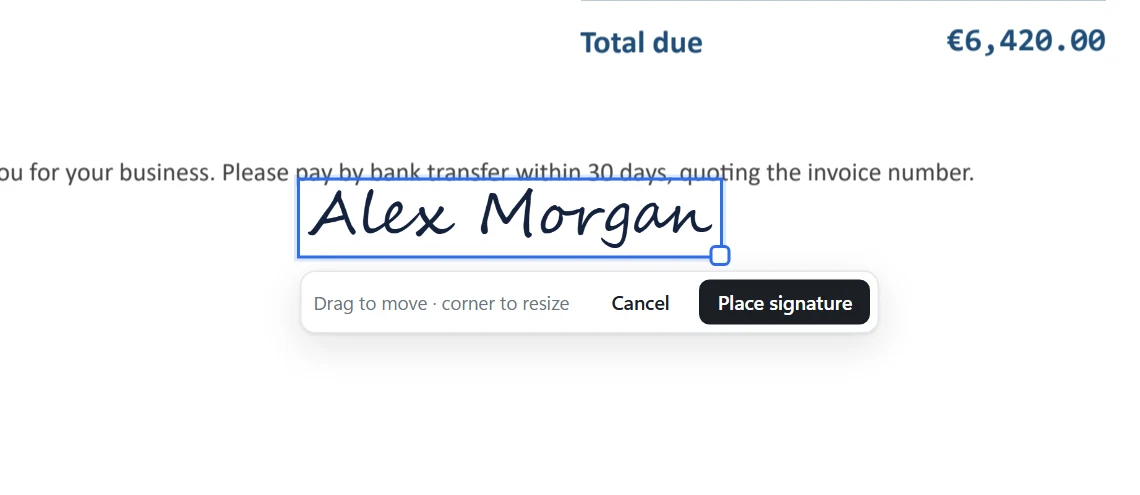
- Click Place it. The signature appears on the page you are looking at. Drag it into place and pull its corner to resize it.
- Click Place signature (or press Enter), then save with Ctrl+S.
Tips
- The signature is saved with a transparent background, so lines and boxes on the form show through.
- Need your initials on every page? Place the signature once per page, or use Add text for printed initials.
- Have a scan of your signature on paper? Use Picture to place that image instead.
Questions
Is a signature added this way legally valid?
It is an electronic signature: a picture of your signature on the document. Many everyday documents (forms, letters, delivery notes, many contracts) accept this, but rules differ by country and by document. It is not a certificate-based digital signature, the kind that proves a document has not been changed since signing. When in doubt, ask the person who needs your signature.
Where is my saved signature kept?
Only on your computer, inside the app. It is never uploaded. You can forget it any time from the signature window.
Can I add the date next to my signature?
Yes: choose Add text, click beside the signature and type the date.
Sign your PDF now
Free to try, $4.99 once. Your documents never leave your PC.